Setting Up Cross-Server Chat
Relay player chat between every ARK server in your network
Cross-server chat lets players on different ARK servers see each other's chat messages in-game, so a community spread across several maps feels like one big network. AASM v0.9.1 makes this a three-toggle job - no cluster setup required.
This guide assumes you already have at least two ARK servers added to AASM. If you don't, walk through Installing Your First Server first.
Good to know: Cross-server chat works independently of cluster settings. Servers don't need to share a cluster to share chat - they just need the same Chat Group Name.
Step 1 - Open Cluster Settings
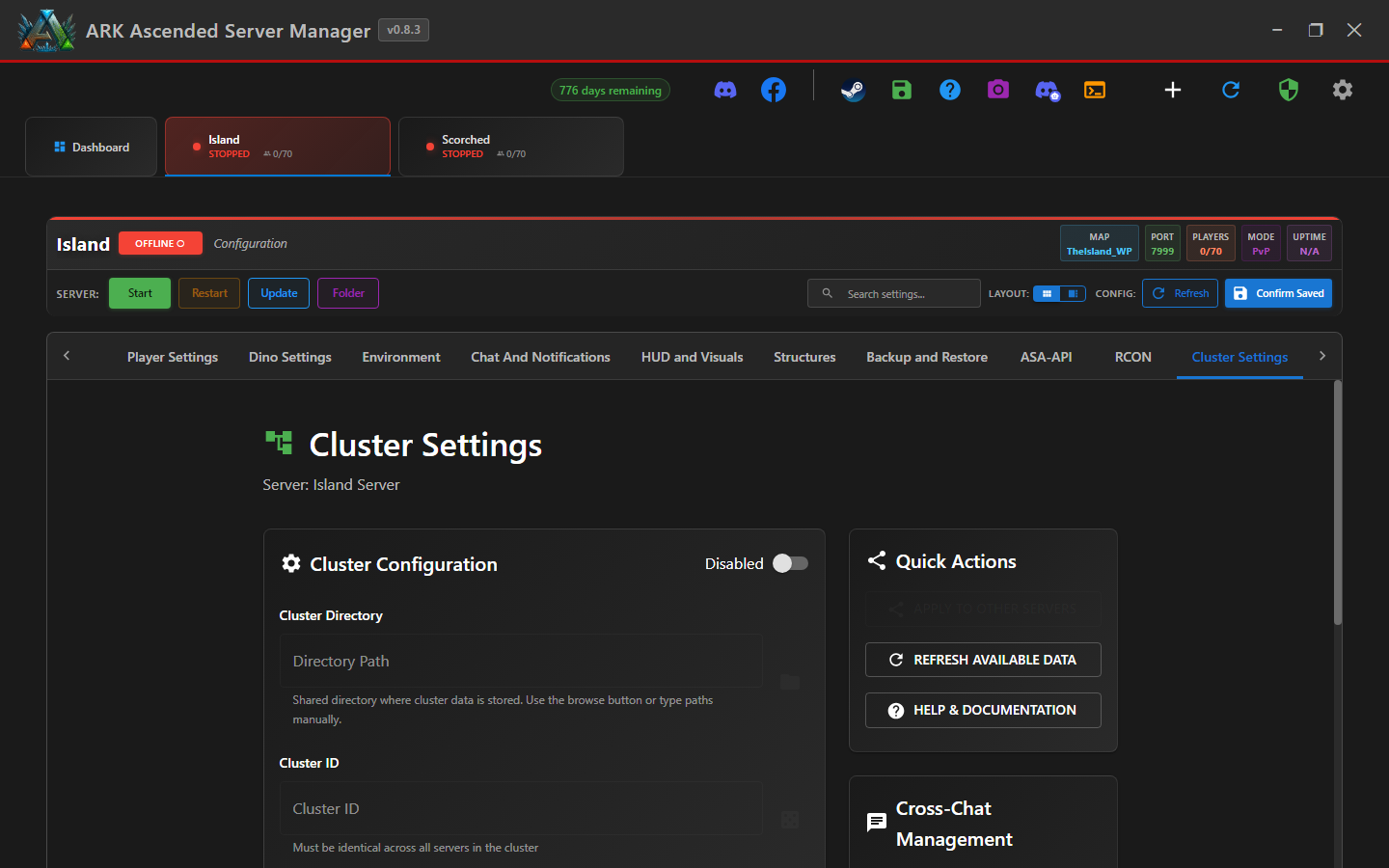
Open the server tab for any server you want in the cross-chat group, then switch to the Cluster Settings sub-tab. You'll see the Cluster Configuration card on the left, Quick Actions and Cross-Chat Management on the right.
Step 2 - Find the Cross-Server Chat panel
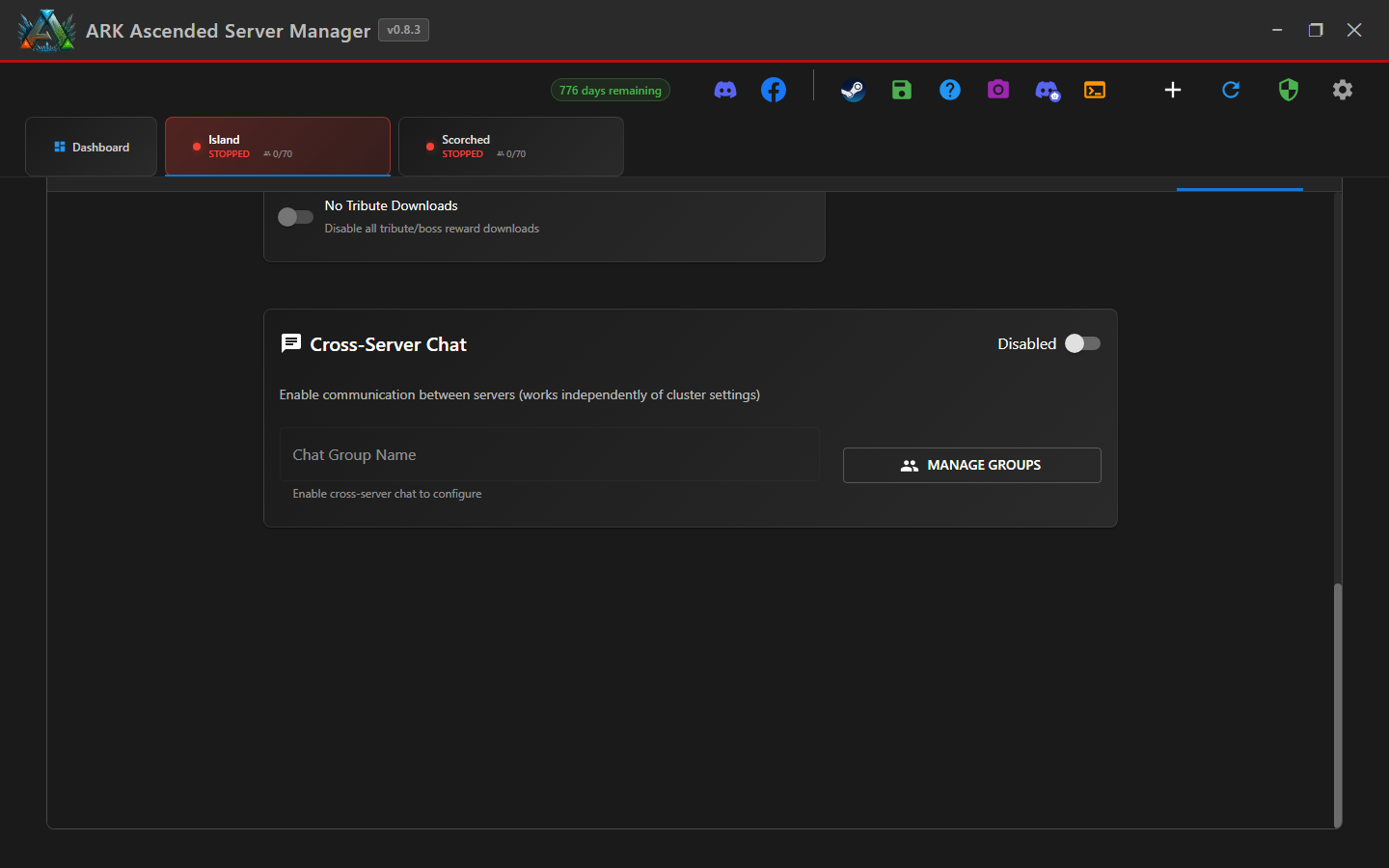
Scroll past Cluster Configuration, Transfer Restrictions, and Advanced Settings until you reach the Cross-Server Chat panel. While the toggle is in the Disabled position, the Chat Group Name field is greyed out and shows the hint "Enable cross-server chat to configure".
Step 3 - Enable cross-server chat and name the group
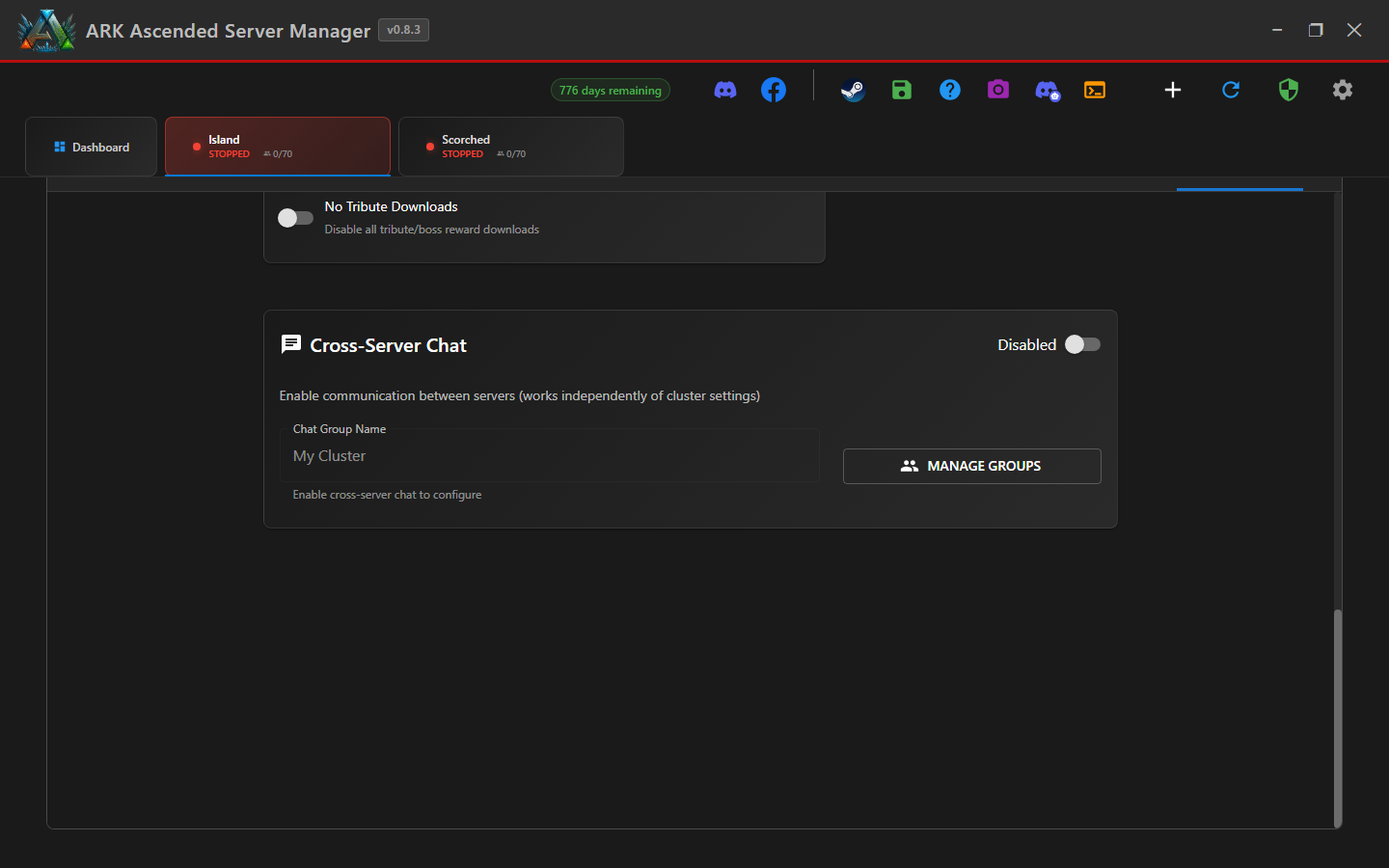
Click the Disabled / Enabled toggle on the right of the panel to switch it on, then type a Chat Group Name. Use the same name on every server you want to share chat - for example My Cluster or survivors-network.
How the group name works: AASM joins every server using the same name into one chat group. The MANAGE GROUPS button lets you see and reuse names you've already created across other servers, so you don't have to remember exact spelling.
Optional: If you want this server to appear under a custom name in cross-chat messages (instead of its server name), set a Cross-Chat Server Name in the same panel after enabling.
Don't forget to save: click the green Confirm Saved button at the top right of the server tab so your changes persist.
Step 4 - Apply the settings to every server
Rather than walking the same toggle on every server one at a time, AASM lets you push the cross-chat settings from this server to the rest of your fleet in one click.
Scroll back to the top of the Cluster Settings tab and click APPLY TO OTHER SERVERS. A dialog opens listing every other server you have configured - tick the ones you want to receive the same Chat Group Name, then confirm.

Apply also pushes other cluster settings you've changed on this server (cluster directory, cluster ID, transfer restrictions, advanced toggles). Only tick servers you actually want to share those settings with.
Step 5 - Start the relay
With cross-chat enabled and a group name set, the Cross-Chat Management sidebar on the right of the Cluster Settings tab becomes active. Click START CROSS-CHAT to begin relaying messages between every server in the group.
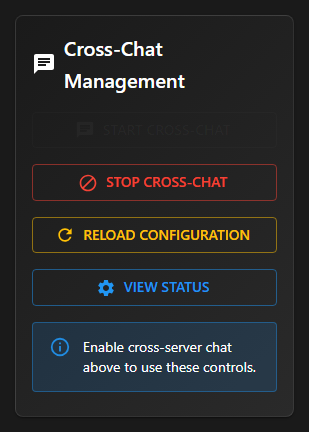
Use the other three buttons as needed:
- STOP CROSS-CHAT - pause the relay without losing your settings.
- RELOAD CONFIGURATION - apply changes to the group name or member list without stopping/restarting the relay.
- VIEW STATUS - opens a dialog showing which servers are currently connected to the group, RCON state, and recent message counts. Use this to confirm everything is wired up before announcing it to players.
Cross-server chat is live
Player messages sent in-game will now appear on every other server in the same Chat Group Name, prefixed with the originating server's name.