Opening Windows Firewall Ports
One click in AASM v0.9.1 - no PowerShell, no rule editor
For players to find and join your ARK server, the game and query ports need to be reachable from the internet. AASM v0.9.1 ships with a one-click button that creates the correct Windows Firewall rules for you - no manual wf.msc, no PowerShell.
This guide also covers the ports you need to forward on your router, since AASM can't open ports on equipment it doesn't control.
Windows-only procedure: this page uses Windows Firewall and PowerShell. Linux administrators should configure the same game, query and RCON ports with their distribution firewall and use Linux troubleshooting.
Which ports does ARK actually use?
Every ARK: Survival Ascended server needs two ports open to the outside world.
| Port | Default | Protocol | What it's for |
|---|---|---|---|
| Game Server Port | 7777 | UDP (game traffic) | Player connections + game updates |
| Query Port | 27015 | UDP | Steam server browser visibility |
Running multiple servers on one machine?
Each server needs unique ports. The simple convention AASM follows is to step the game port up by 10 and the query port up by 5 for each new server:
- Server 1: 7777 / 27015
- Server 2: 7787 / 27020
- Server 3: 7797 / 27025
RCON port is local-only. The RCON port (default 27020 for server 1) should not be opened to the internet - only AASM and the optional ASA RCON Manager need it, and they connect over localhost.
Step 1 - Open the Maintenance tab
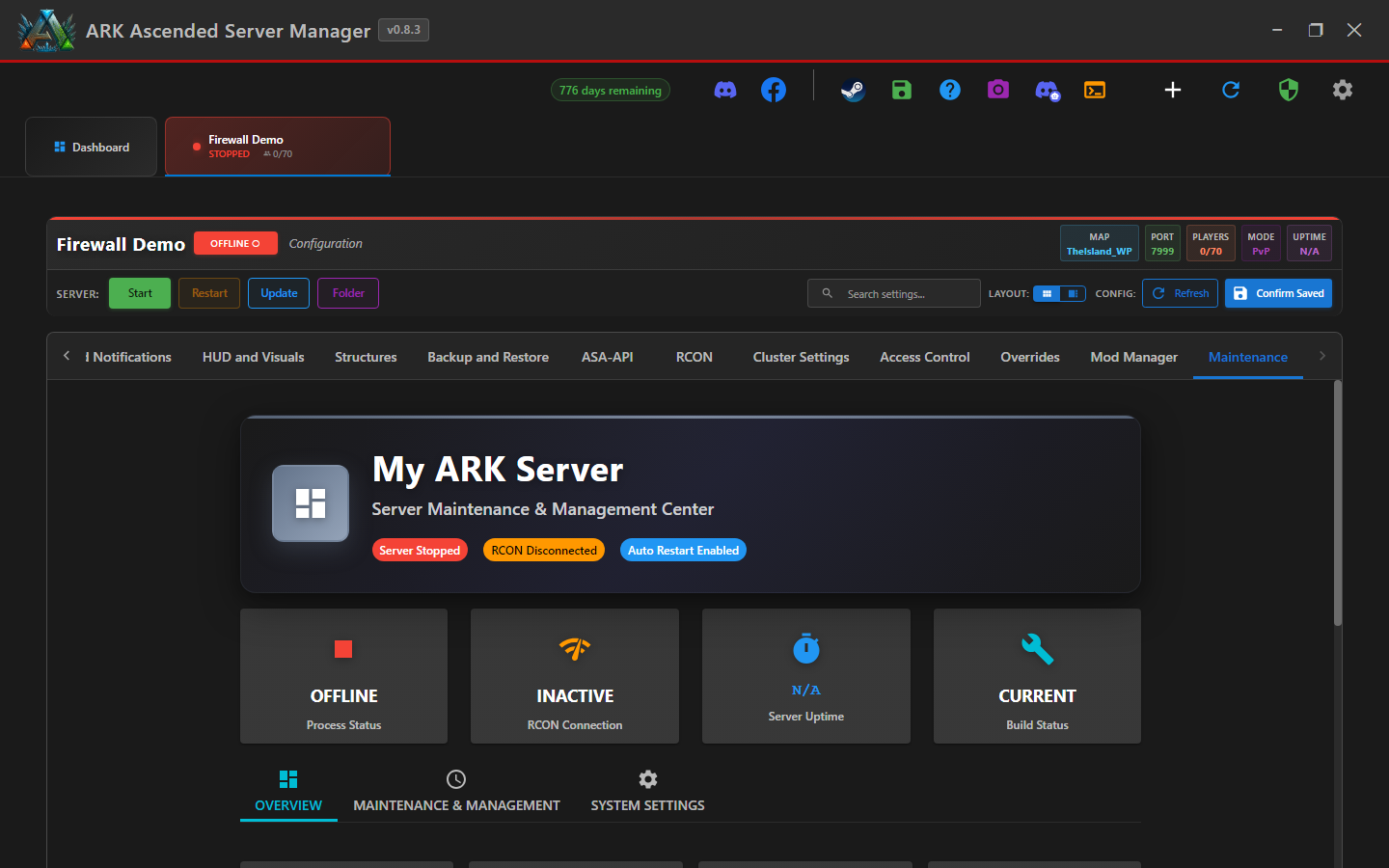
Open the server tab for the server you want to configure, then click the Maintenance sub-tab (far right of the sub-tab strip).
Step 2 - Find System Operations
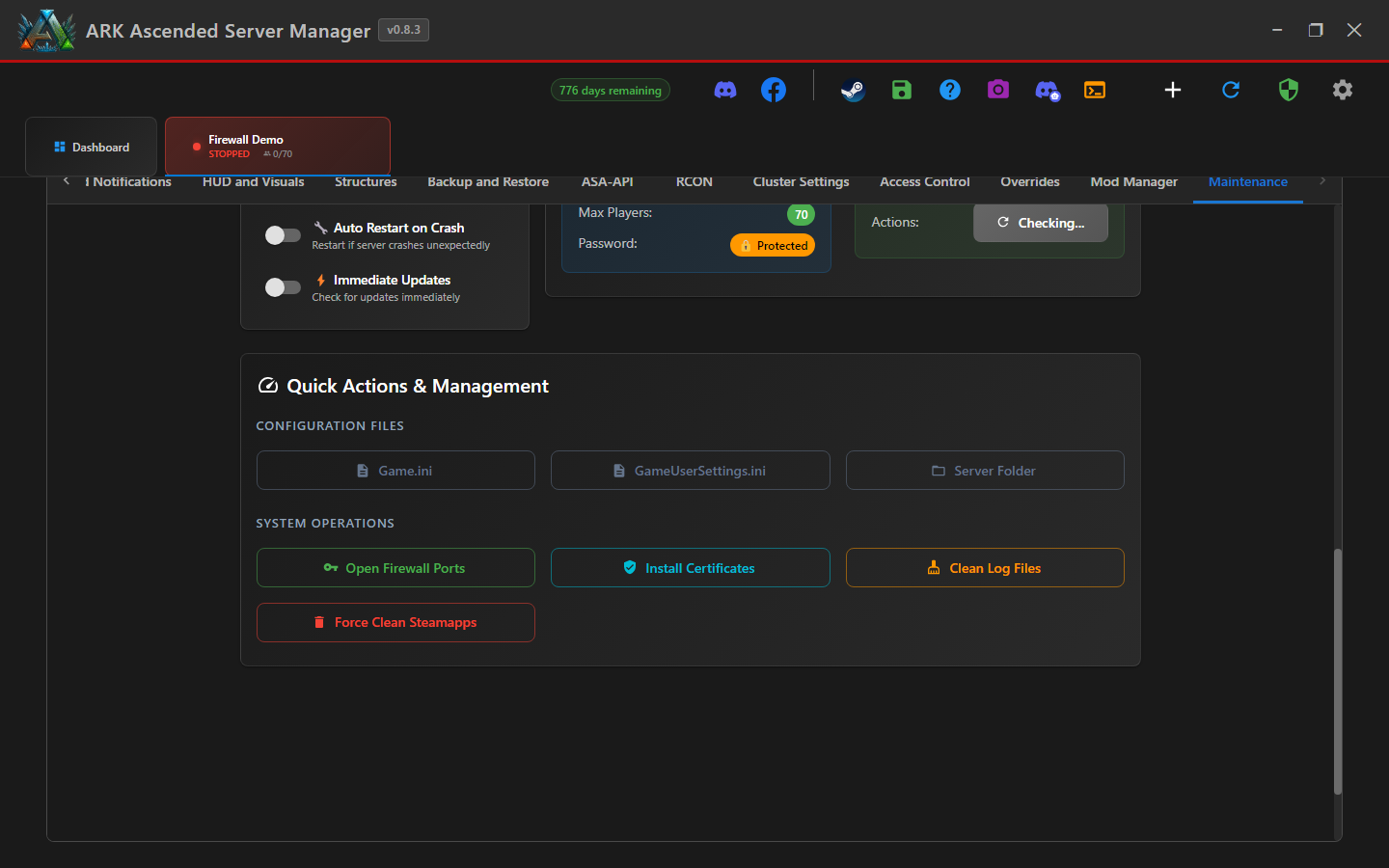
Scroll down to the Quick Actions & Management card. Inside, the SYSTEM OPERATIONS section holds three big buttons: Open Firewall Ports, Install Certificates, and Clean Log Files.
Step 3 - Click "Open Firewall Ports"
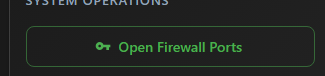
Click the green Open Firewall Ports button. AASM reads the game and query ports from this server's configuration and opens a preview before doing anything.
Step 4 - Review and confirm
The dialog lists exactly which ports AASM is about to open in Windows Firewall, with their protocols (TCP for the game port, UDP for the query port).
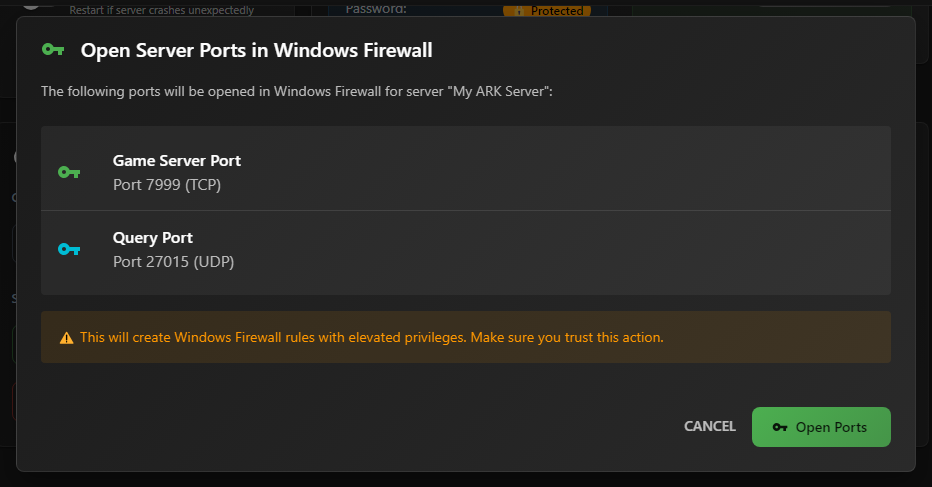
Click Open Ports. Windows will prompt for elevation (UAC) because creating firewall rules requires admin rights - approve it. AASM then runs New-NetFirewallRule for both ports and shows a green success toast in the top right.
If you change the server's game or query port later, re-run this button so the firewall rules pick up the new numbers. Old rules from previous ports stay around unless you manually remove them - they're harmless but they accumulate over time.
Step 5 - Forward the ports at your router
Windows Firewall is only half the job - your router/modem also has to forward incoming game/query traffic to the PC running the server. AASM can't do this for you because it lives on the wrong side of your LAN.
Log into your router's admin page (typically 192.168.0.1 or 192.168.1.1), find the Port Forwarding section, and forward each port to your server PC's LAN IP address:
- Game Server Port (default 7777) - UDP, forwarded to the server PC
- Query Port (default 27015) - UDP, forwarded to the server PC
Tip: Give your server PC a static LAN IP (or a DHCP reservation in your router) so port forwards don't break when the PC reboots.
Step 6 - Verify the server is reachable
Start the server from AASM and wait a minute for it to register with Steam. Then test reachability:
- Have a friend on a different network search for the server name in the in-game Unofficial PC Sessions list.
- Or visit battlemetrics.com and search for your server name.
- Or use any "port checker" web tool against your public IP and the game port - it should report the UDP port as open.
If the server boots fine but no one can find it: 99% of the time the issue is the router-side port forward, not Windows Firewall. AASM's step-4 success toast confirms the firewall rules exist; if the test still fails, double-check your router setup.
Your server is reachable from the internet
Windows Firewall has the rules it needs, your router knows where to send incoming game traffic, and your friends should be able to find and connect.