
CPU Affinity & Process Priority
Pin your server to specific cores (ASM v0.9.1)
By default, the operating-system scheduler can move ARK between available CPU cores. AASM's CPU Settings dialog lets you pin each server to selected cores and set its process priority, which can help separate workloads on a multi-server host.
CPU Settings are per-server and persist across restarts. On Linux, verify the assignment against the Proton/Wine-launched ASA process; see Linux troubleshooting if it is not retained.
Find the CPU Settings Button
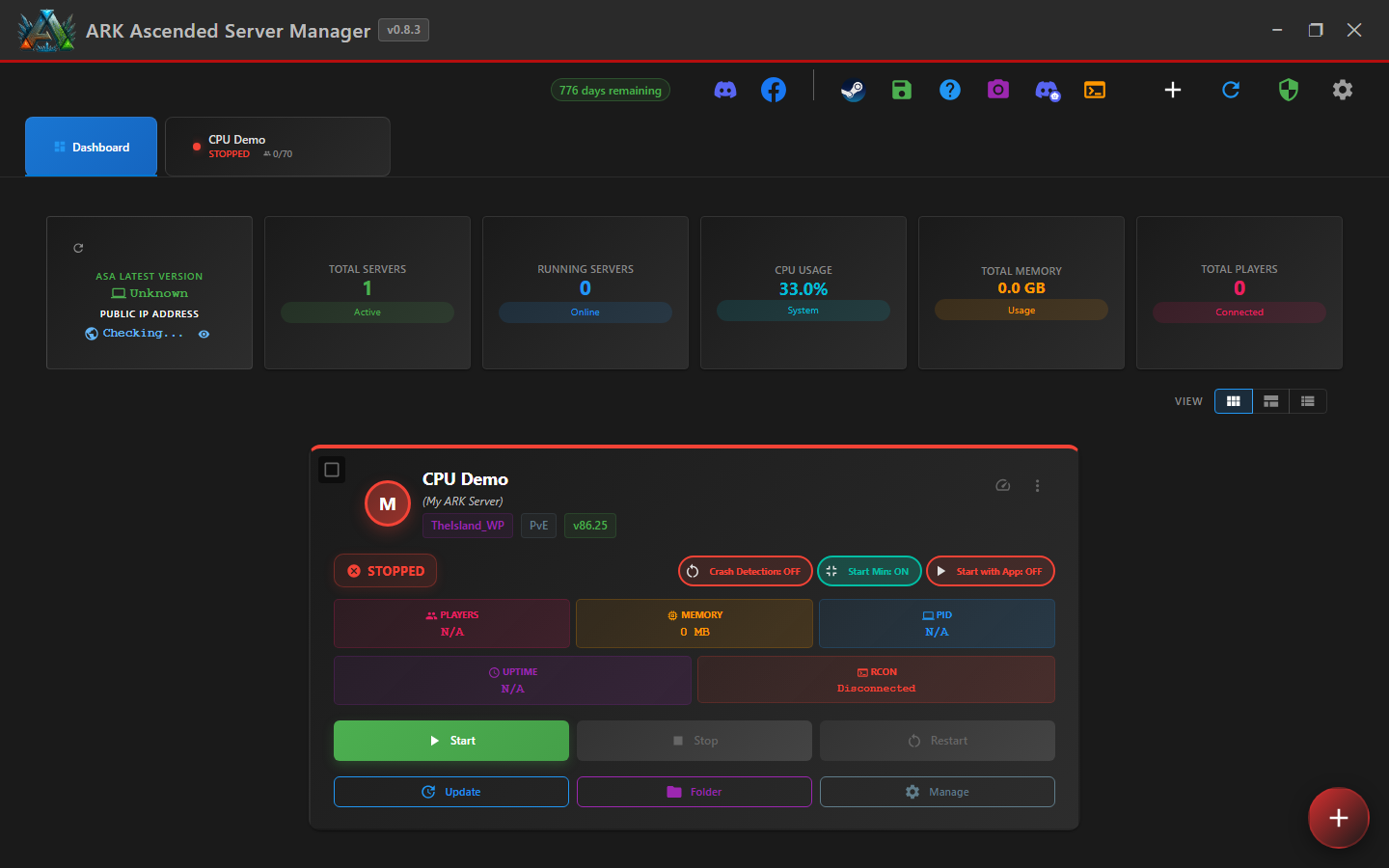
On the dashboard, look at the top-right corner of each server's card. You'll see two small icons: the CPU Settings icon (a small processor chip) and the menu icon (three dots). Hover the CPU icon and you'll see the tooltip "CPU Settings" — or "CPU Settings (Active)" if you've already configured affinity for this server.
Close-up of just the CPU Settings icon button:

The icon turns green with a soft glow when CPU settings are active for that server — quick visual confirmation that something is pinned.
Open the CPU Settings Dialog
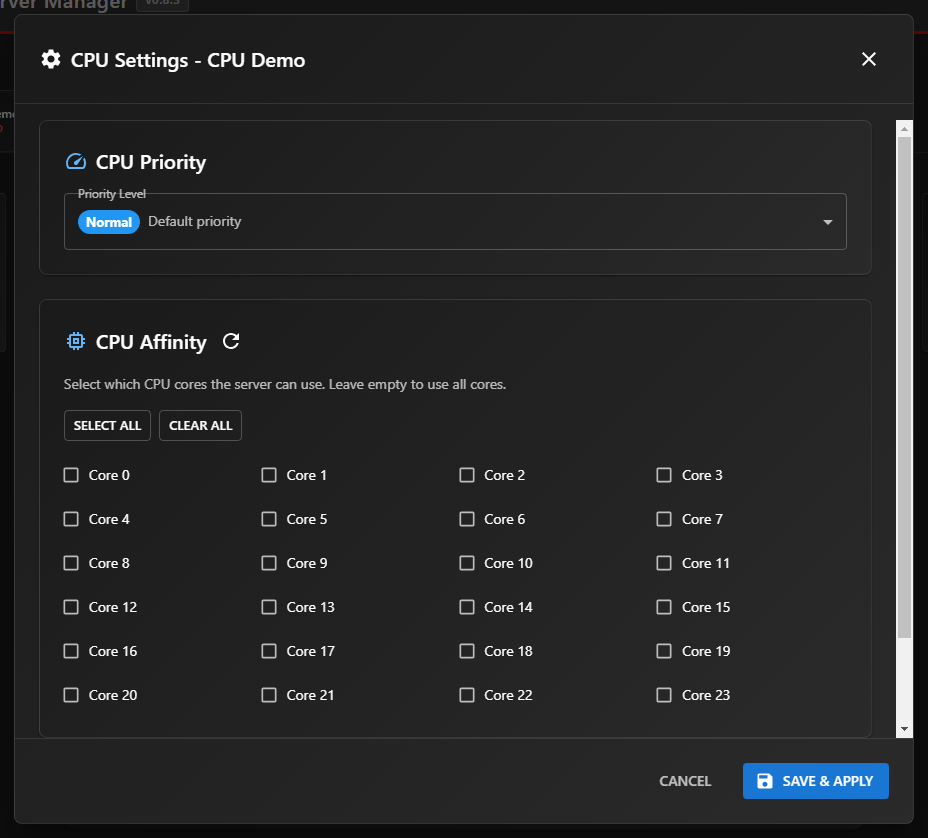
Click the icon. The CPU Settings — <Your Server> dialog opens, showing two sections: CPU Priority at the top and CPU Affinity below it. The dialog auto-detects every logical core on your CPU and renders them as a grid of checkboxes (24 cores in the screenshot below; yours may show fewer or more).
Pick Which Cores the Server Can Use
In the CPU Affinity section, tick the checkboxes for the cores you want this server to run on. Common patterns:
Don't pin a single server to just one core. ARK is multi-threaded internally; restricting it to one core will halve frametime performance. Two cores minimum, four to eight is a sensible starting point for most servers.
Set the Process Priority
The CPU Priority section at the top of the dialog has a single dropdown labelled Priority Level. The default is Normal, which is fine for most setups. The four available levels and when to use them:
| Priority | When to use |
|---|---|
| Low | Test / dev / dormant servers that you want to keep running but never compete with anything else for CPU. |
| Normal | Default. Use this unless you have a measured reason to change it; the operating system balances ARK against other workloads. |
| High | Production server on a dedicated host where you want ARK to win every time the OS schedules. Safe on modern hardware with the OS pinned to its own cores. |
| Realtime | Use with extreme caution. ARK pre-empts everything including disk I/O and network drivers. Can make the whole machine unresponsive if ARK pegs the CPU. Only consider if you've tested it on identical hardware and have a hardware reset button handy. |
Higher priority doesn't make ARK faster on its own. It just shifts which process wins the CPU when multiple things want it. If ARK has free CPU available, it'll already use as much as it needs at Normal priority.
Save & Apply
Click the blue SAVE & APPLY button in the bottom-right of the dialog. ASM does two things:
data\cpu_settings.json so they survive ASM restarts.
The icon on the dashboard card turns green to confirm CPU settings are now active for this server.
When CPU Affinity Actually Helps
CPU affinity is genuinely useful for some setups and a wasted tweak for others. Honest summary:
CPU Settings Saved!
Your server now runs on its dedicated cores at the priority you picked. Open Task Manager → Details → right-click ArkAscendedServer.exe → Set affinity to verify the cores actually applied.