
Configuring Automated Backups
Schedule + retain + (optionally) ship offsite (ASM v0.9.1)
Backups are non-negotiable for ARK servers — a corrupted save or accidental wipe can erase weeks of player progress. ASM v0.9.1 ships an integrated backup system that runs alongside Wildcard's own auto-save, with two configuration surfaces: Backup & Restore for destination/retention/SFTP and Maintenance for the schedule itself. This guide walks both.
What AASM backs up: the server's SavedArks directory and configuration files. On Linux, choose a destination writable by the AASM user; its application data root is ~/.local/share/aasm.
Open the Backup & Restore Sub-tab
Click your server's tab next to Dashboard, then click the Backup and Restore sub-tab. You'll see the v0.9.1 backup landing page with three primary regions: World Backups / Player Characters tabs at the top, a Quick Actions row in the middle (one-shot Backup Now, Refresh list, Open Folder, Cleanup Old), and the Backup Settings + Statistics cards below.
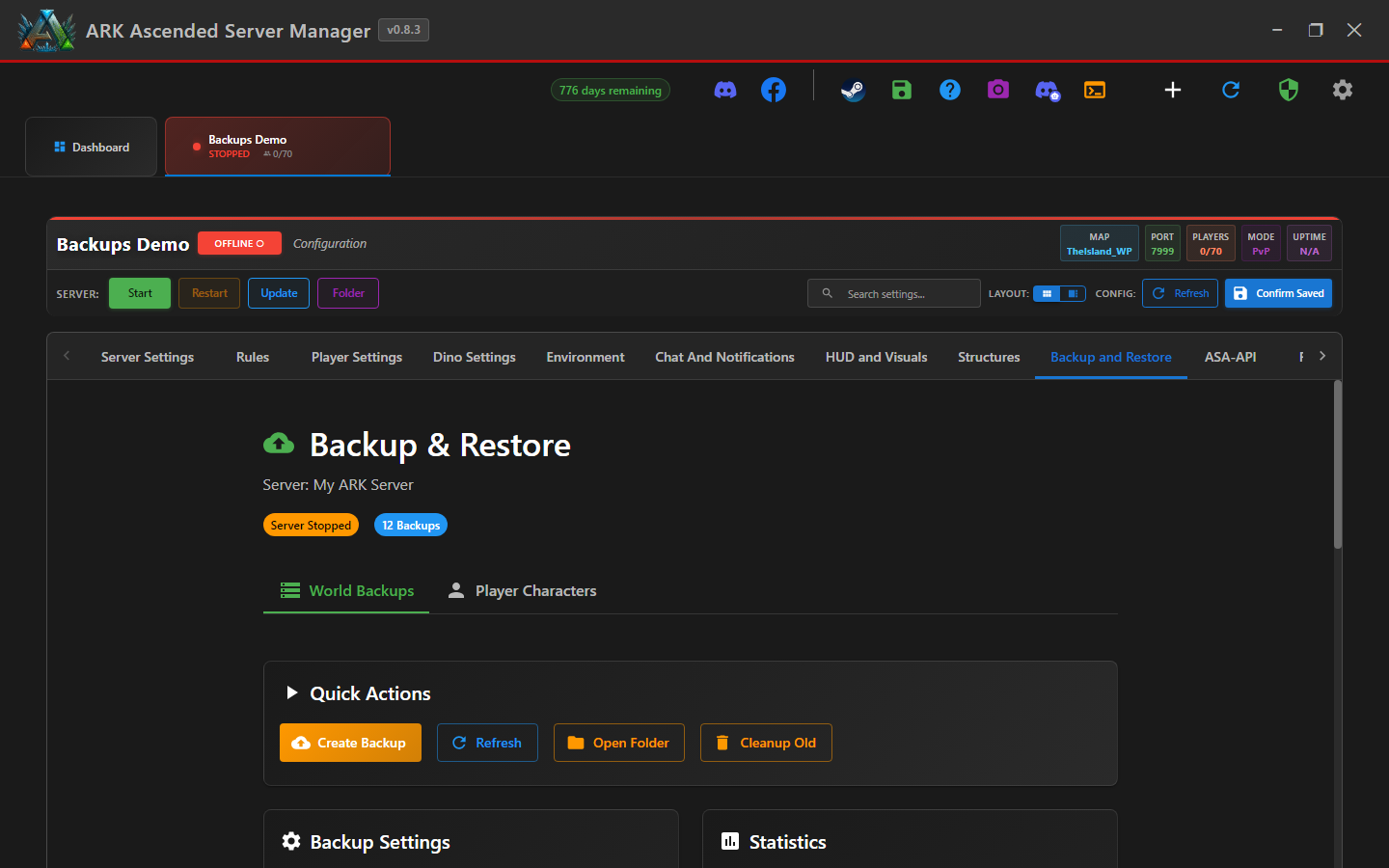
The orange "Server Stopped" pill below the heading just means the server isn't running — it has no effect on backups. ASM can back up a stopped server just as well as a running one (in fact safer, since nothing else writes to SavedArks).
Set Backup Destination, Retention & (optional) SFTP
Scroll to the Backup Settings card. Configure:
.zip files land. Use a different physical drive than your ARK install — if the install drive fails you don't lose both at once. External USB, NAS share, or a second internal drive all work.
.zip files to keep. ASM auto-deletes the oldest when the count is exceeded. Sensible defaults: 24 if you back up hourly (1 day), 14 if daily (2 weeks), 8 if every 3 hours (1 day rolling).
Test the destination once with Backup Now in Quick Actions before relying on the schedule. If permissions are wrong or the path is invalid you want to find out now, not next Tuesday at 3am.
Schedule via the Maintenance Sub-tab
Backup scheduling lives separately from backup configuration in v0.9.1 — click the Maintenance sub-tab (further to the right in the sub-tab strip; you may need to scroll the tabs horizontally to see it).
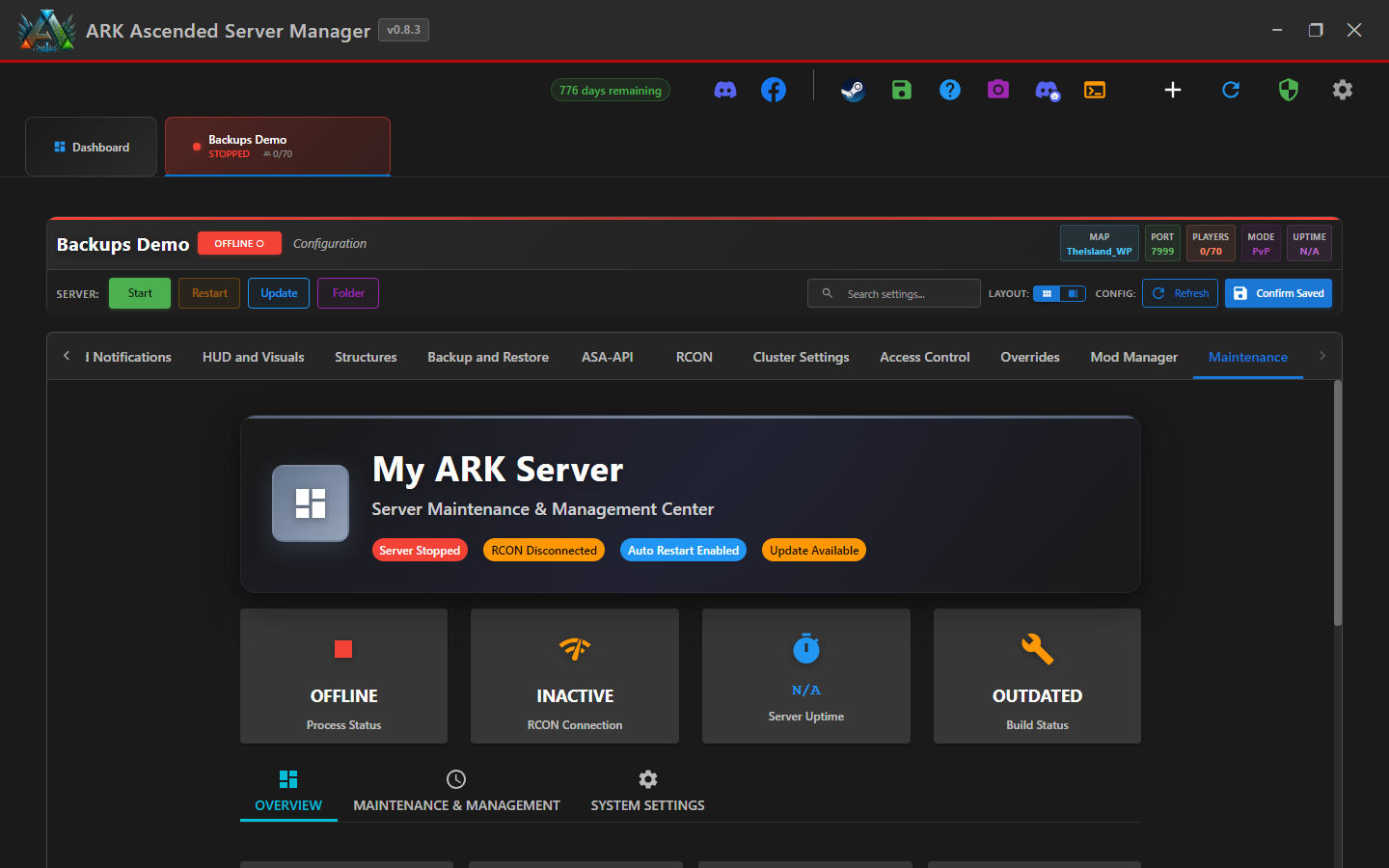
The Maintenance landing shows four status cards (Process Status, RCON Connection, Server Uptime, Build Status) and three sub-sections: OVERVIEW, MAINTENANCE & MANAGEMENT, SYSTEM SETTINGS. The schedule controls live in MAINTENANCE & MANAGEMENT.
Pick your backup frequency:
| Frequency | When to use |
|---|---|
| Hourly | Active production server with high player count — minimises data loss to 1 hour. Pairs well with 24-backup retention. |
| Multiple times per day | v0.8.2+ option: pick an interval (2, 3, 4, 6, 8, 12 hours) anchored to a specific time of day. Halfway house between hourly and daily. |
| Daily | Most servers. Pick a quiet time (e.g. 4am local) so backup doesn't compete with peak play. |
| Weekly | Low-traffic / private servers. Combine with one manual Backup Now after big events. |
Backups in v0.9.1 are independent of restarts — you can have hourly backups and only weekly restarts. The Maintenance tab also exposes scheduled restarts; configure both from the same place.
Save and Verify
Click the Save button below the schedule controls. Then back in Backup and Restore → Quick Actions, click Backup Now for an immediate dry-run.
.zip appears in the World Backups list with a timestamp.
The Statistics card on the Backup & Restore page tracks total backups, last backup time, and total space used — quick health check at a glance.
Restoring a Backup
When you actually need to roll back, the flow is:
SavedArks aside as a safety copy, extracts the backup, verifies the contents, then deletes the safety copy on success.
Player Characters are restored separately under the Player Characters tab next to World Backups. Useful when you only need to recover one tribe's progress without rolling back the whole world.
Backup Strategy Recommendations
High-traffic PvP
Hourly backups, retention 48 (2 days), SFTP to a separate machine. Add a manual Backup Now before any major patch.
Casual PvE
Daily backups at 4am local, retention 14 (2 weeks), local destination on a separate drive. SFTP optional.
Small private cluster
Every-6-hours backups across all cluster members, retention 28 (1 week). Configure once per server — ASM doesn't share schedules across cluster members.
Testing / dev
Manual Backup Now before each test, retention 5. Avoid the schedule cost when nothing player-facing is happening.
Backups Configured!
Your server data is now backed up on the schedule you picked. ASM logs backup failures to data\scheduled_backup_failures.json — check that file (or the Statistics card) periodically to confirm everything's still working.