
A daily server restart clears memory leaks, applies any queued auto-updates, and keeps performance predictable. AASM lets you pick a single time of day, enable in-game countdown warnings, and let the scheduler handle the rest.
This is the simplest of the three restart modes (daily / multiple times per day / every X hours).
Prerequisites:
- A server already added to AASM (see Installing Your First Server).
- You're an admin or operator in AASM - viewer/dashboard roles can't change the schedule.
Step 1 - Open the Maintenance tab
Open the server tab for the server you want to schedule, then switch to the Maintenance sub-tab on the right of the sub-tab strip.
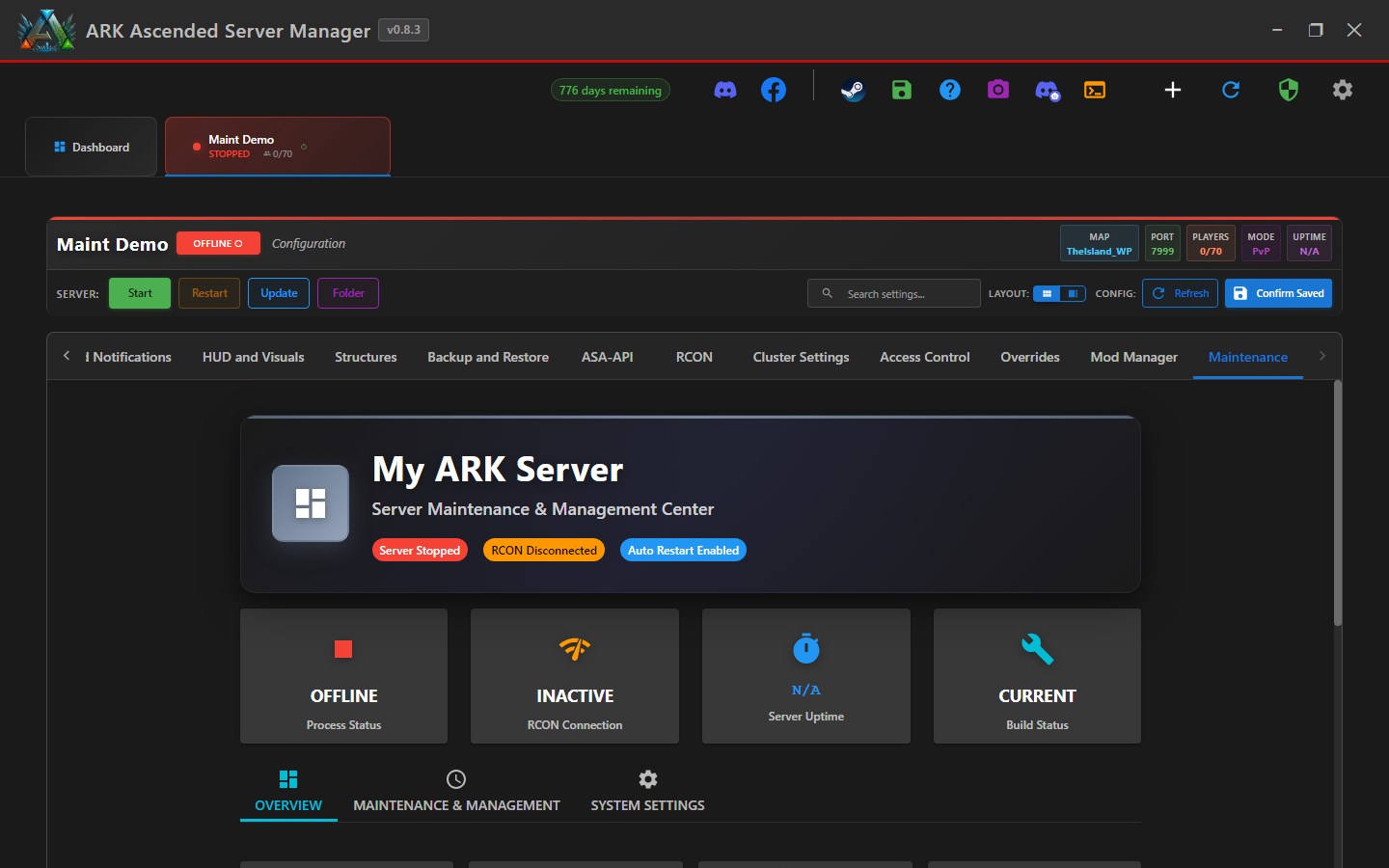
Step 2 - Switch to Maintenance & Management
The Maintenance tab has three internal sub-tabs. The middle one - Maintenance & Management - is where the scheduling controls live.
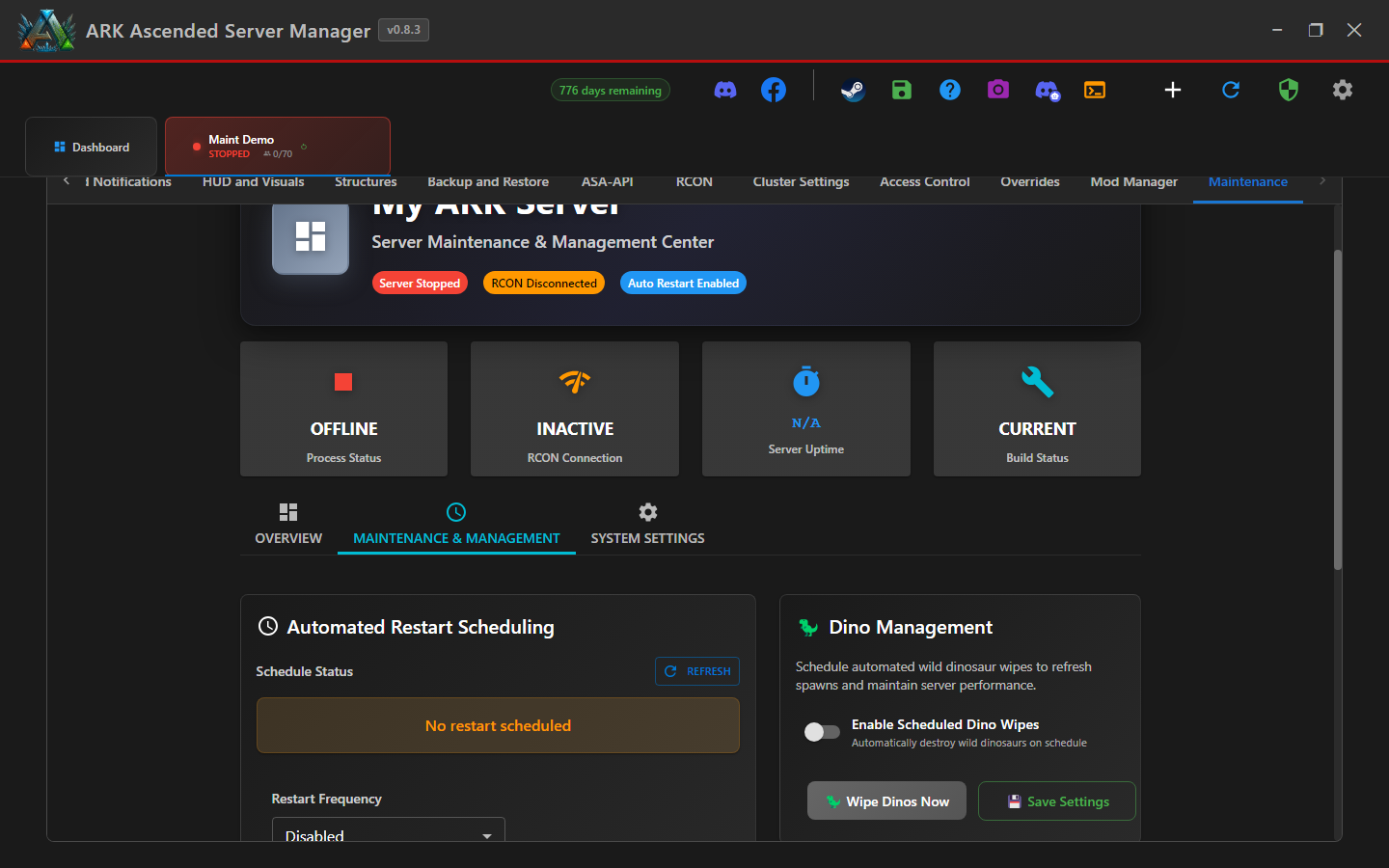
Step 3 - Enable Scheduled Restarts
In the Quick Settings card on the left, flip the Scheduled Restarts toggle on. This is the master switch - if it's off, AASM ignores the schedule even after you save it.
While you're there, leave Player Notifications on so AASM broadcasts countdown warnings (10 min, 5 min, 1 min) over RCON before the restart.
Step 4 - Set the frequency to Daily
Scroll to the Automated Restart Scheduling card. The Restart Frequency dropdown defaults to Disabled - change it to Daily. The card will expand to show a time picker.
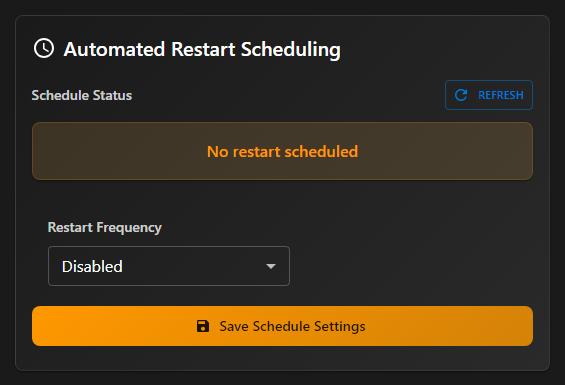
Step 5 - Pick a restart time
Enter a time in 24-hour format. Most communities pick a low-population hour - 04:00 or 05:00 server-local works well.
The time is interpreted in the AASM host PC's local timezone. If your players are global, pick a time you can explain in plain English (e.g., "4 AM Sydney time") on your Discord.
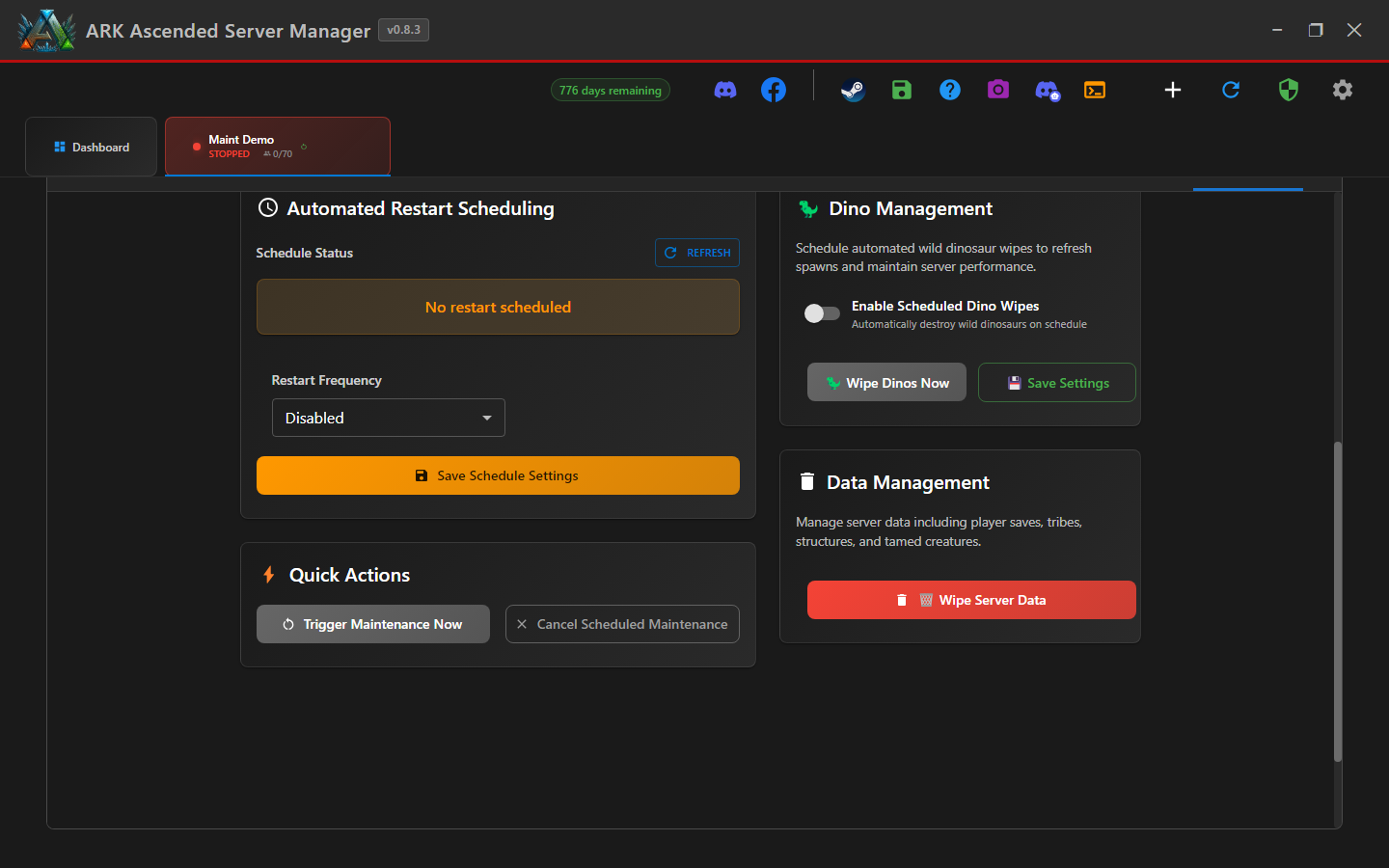
Step 6 - Save Schedule Settings
Click the orange Save Schedule Settings button at the bottom of the card. The Schedule Status banner will flip from "No restart scheduled" to show the next restart's exact countdown.
From now on, AASM:
- Broadcasts countdown warnings to players over RCON in the lead-up
- Sends maintenance notifications to your Discord channel (if the Discord bot is configured)
- Performs the restart and starts the server cleanly afterward
- Logs the action so you can audit it in the debug log
Scheduling Daily Restarts - done
Your server will now restart automatically at the same time every day, with countdown warnings to players. Open the Maintenance tab whenever you want to change the time or disable the schedule.