ASM v0.8.3 ships with a fully-integrated Discord Bot — no separate download, no manager-registration step. The new Discord Bot dialog walks you through the three things you actually need to do: create a bot, paste the token, run /setup wizard in Discord. Everything else (server status cards, voice channel indicators, admin commands, player join/leave logs, cross-chat bridge) is configured from inside Discord itself with slash commands.
You need a Discord account with Manage Server permission in the server you want to add the bot to. The whole flow takes about 10 minutes.
In the ASM header toolbar (top-right area, next to the License pill and refresh icon), find the Discord Bot icon — it's the Discord logo with a small badge.
The Discord Bot icon (third icon from the left of the header):

Click it. The Discord Bot dialog opens with three tabs (Setup, Features, Issues) and a Not Configured badge in the top-right until you complete the setup.
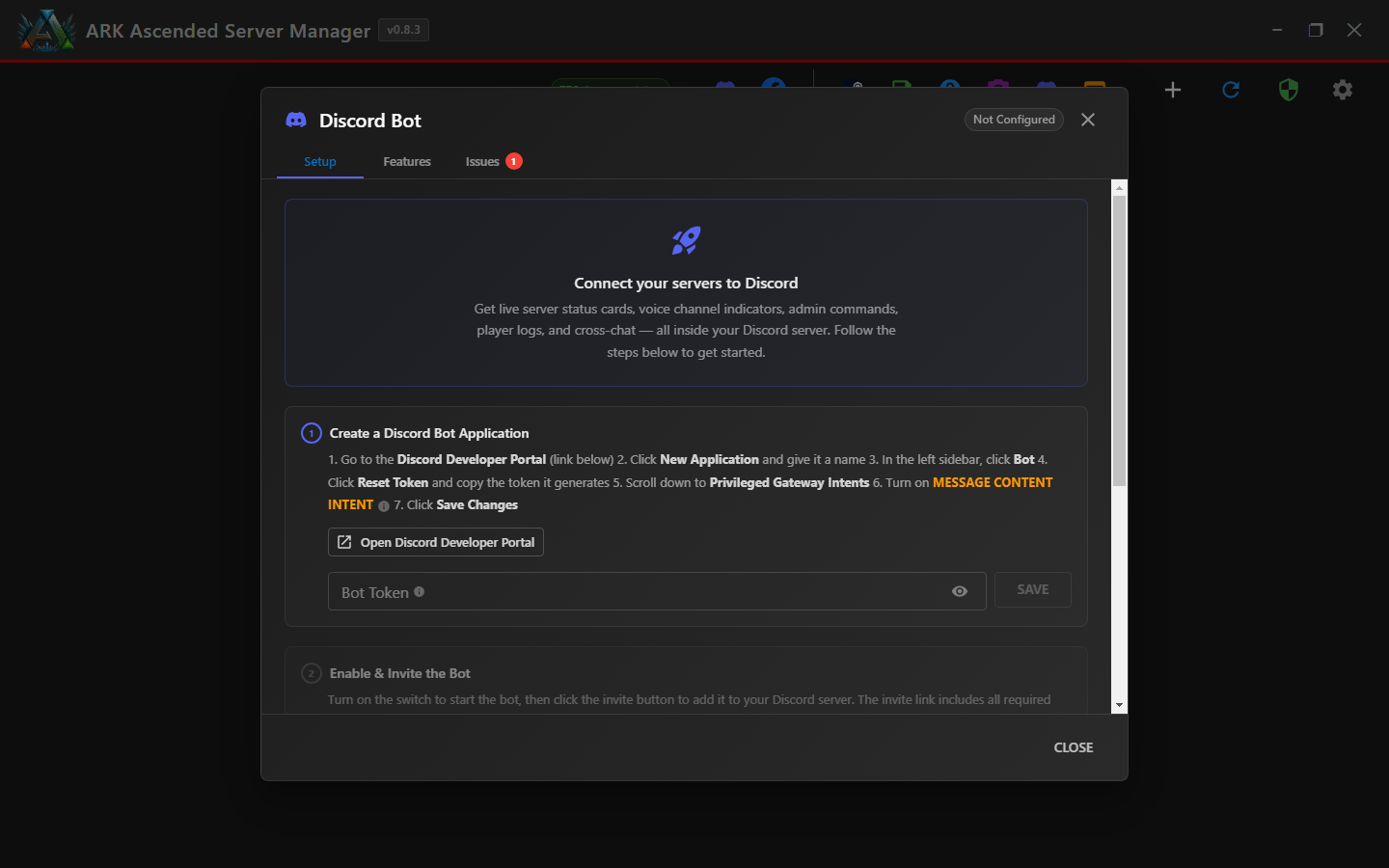
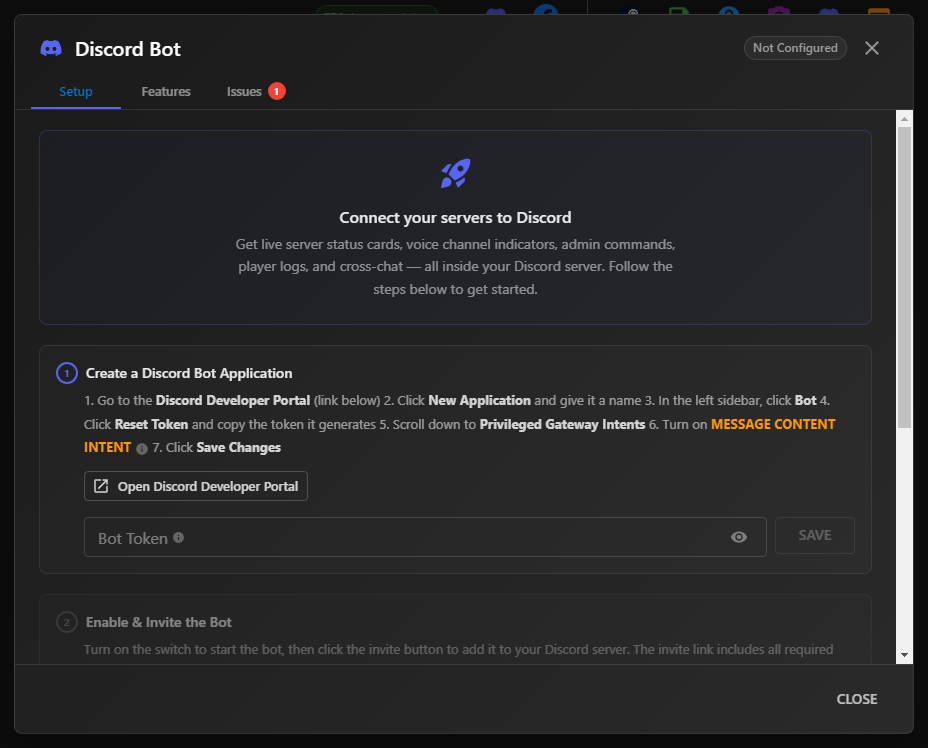
The Setup tab's first section (1. Create a Discord Bot Application) walks you through making a new bot in Discord's developer portal. Follow these sub-steps on Discord's side:
Back in ASM, paste the token into the Bot Token field and click SAVE.
Keep the token private. Anyone with it can post as your bot. If it leaks, click Reset Token again on the Discord side and re-paste the new value.
/setup wizardWith the token saved, the dialog's Step 2 — Enable & Invite the Bot activates. Toggle the switch from Disabled to Enabled, then click the invite button that appears. Discord opens in your browser asking which server to add the bot to — pick yours, leave the pre-checked permissions as-is, click Authorize.
The invite link includes all the permissions the bot needs (Manage Channels, Send Messages, Embed Links, and so on). If you've invited a previous version of this bot and it now misbehaves, kick it from your Discord server first and re-invite using the fresh link.
Once the bot appears in your Discord server, go to Step 3 — Configure Features in Discord. The fastest path is the new in-Discord setup wizard:
/setup wizard in any text channel
The wizard walks you through every feature (status cards, voice indicators, admin commands, cross-chat, join/leave logs) one at a time, asking which channels to use. If you'd rather configure individually, the dialog lists each available command and what it does:
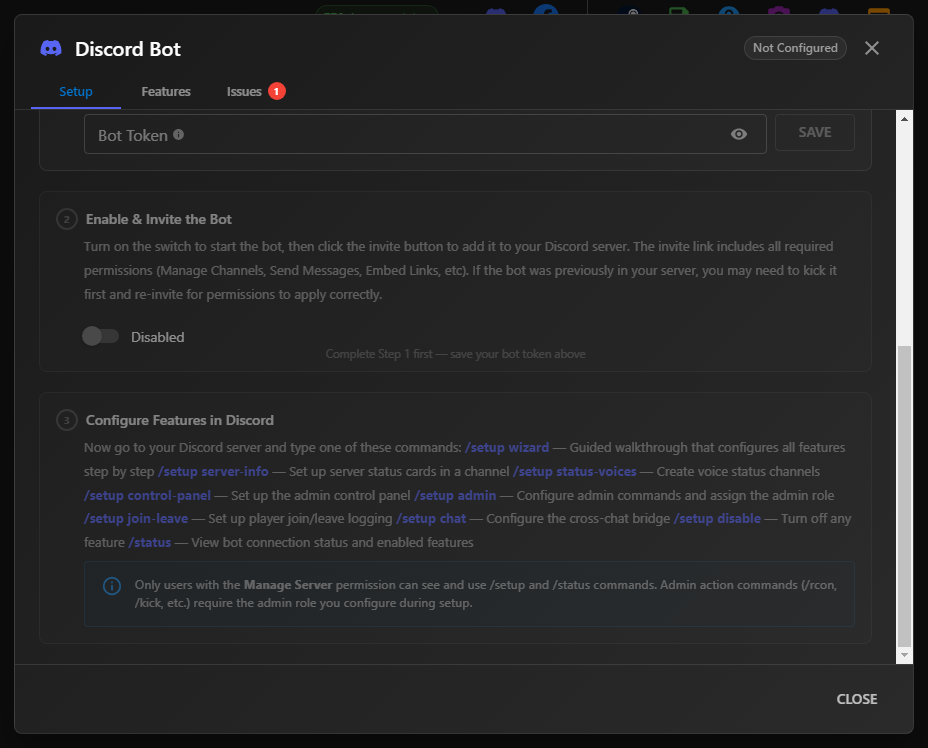
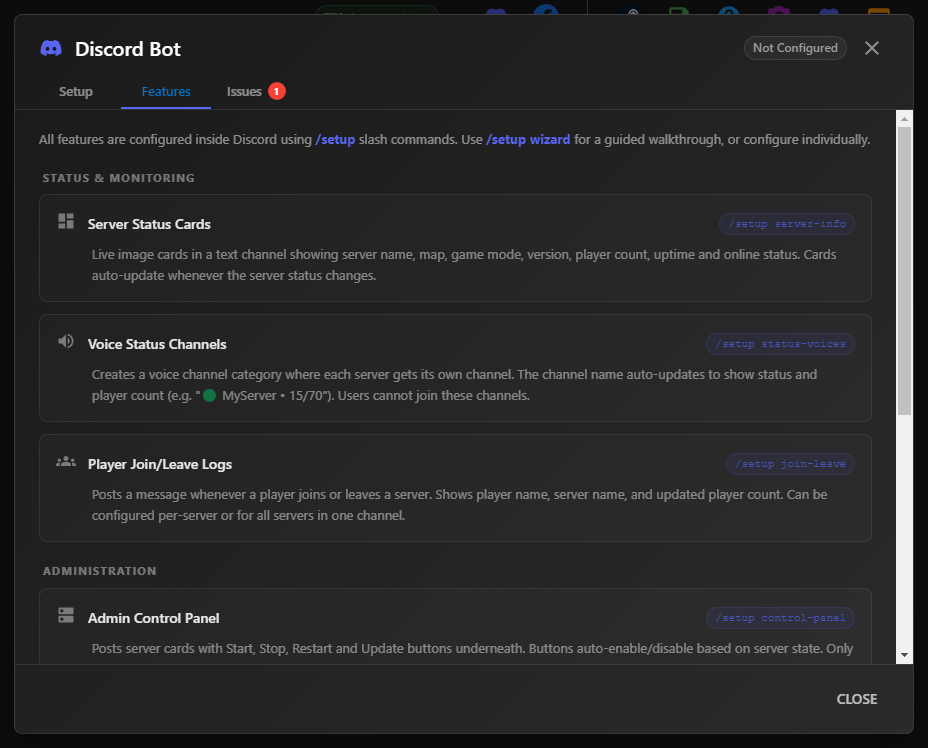
The Features tab inside the dialog is a complete reference for every Discord-side capability. Each feature is independently configurable and can be disabled later with /setup disable. The most common ones:
/setup server-info — Live image cards in a text channel showing server name, map, mode, version, player count, uptime, online status. Auto-updates whenever server state changes.
/setup status-voices — Creates a voice channel category where each server gets its own channel, named to show status + player count (e.g. MyServer - 15/70). Users can't join — it's read-only signage.
/setup control-panel — Posts server cards with Start, Stop, Restart, Update buttons. Buttons auto-enable/disable based on server state.
/setup chat-bridge — Configure the cross-chat bridge. Pair this with Cross-Server Chat set up on the ASM side first.
/setup join-leave — Posts a message every time a player joins or leaves any server. Configurable per-server or for all servers in one channel.
/setup admin — Configure which Discord role can run admin commands (Start/Stop/Restart, RCON, kick). Only users with Manage Server permission can run /setup itself.
The full Features tab reference inside the Discord Bot dialog:
Once configured, this is the kind of thing your Discord server gets:
Server status card — auto-updates on state changes.
Admin control panel — one-click server actions from Discord.
Voice channel showing live player count.
Discord voice-channel rate limit: voice channel names can only be updated twice every 10 minutes (Discord's API limit, not ASM's). The bot batches updates so you may see the player count lag for up to 5 minutes.
If something doesn't work, open the dialog and check the Issues tab — ASM surfaces connection errors, missing intents, and permission problems there with a numbered badge on the tab.
/setup admin can run server-control commands. The /setup commands themselves require Discord's built-in Manage Server permission.
Your ARK servers are now visible, controllable, and chatting through Discord. The bot keeps running as long as ASM is open — if you close the app, the bot goes offline too.